
Overview
Records is your document library for PDFs, images, and other health files you want alongside daily tracking.
Use it for lab exports, visit summaries, referral letters, and anything you would otherwise keep in email or camera roll.
Why use it
Centralizing documents makes visit prep and caregiver sharing less stressful.
Where to find it
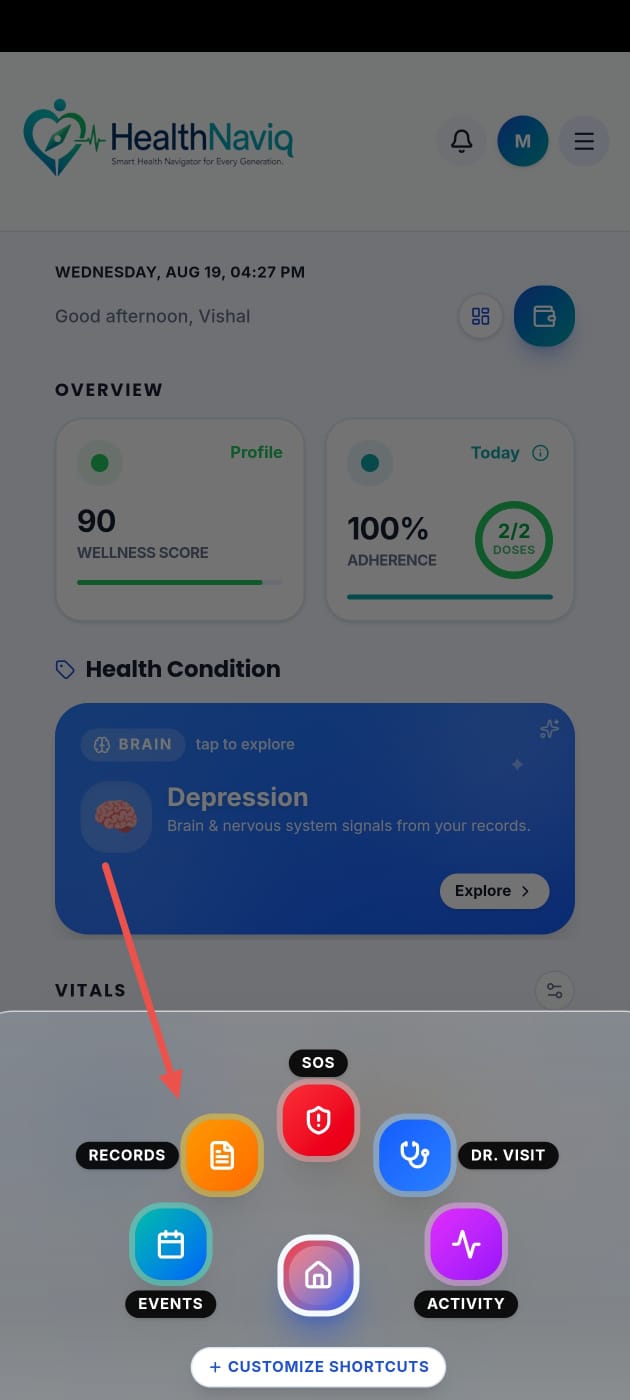
How to
- 1Open Records
Go to Records from navigation or Quick Dial.
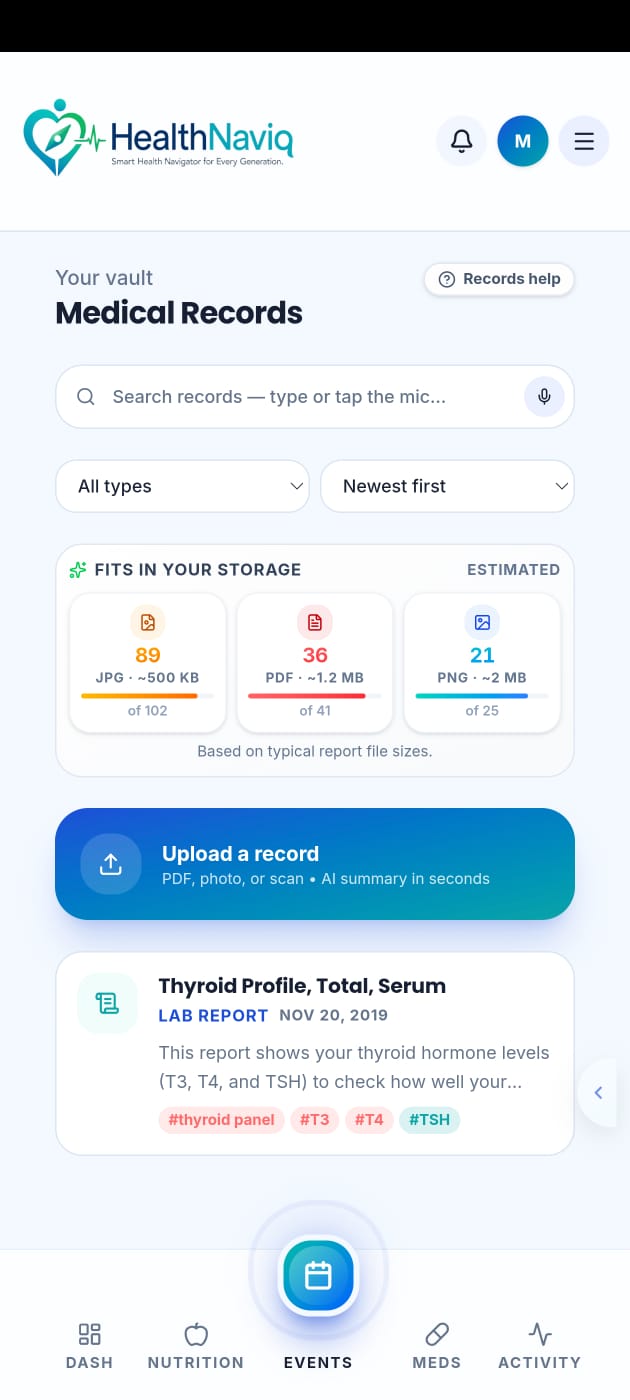
- 2Browse existing files
Scan titles, dates, and categories already uploaded.
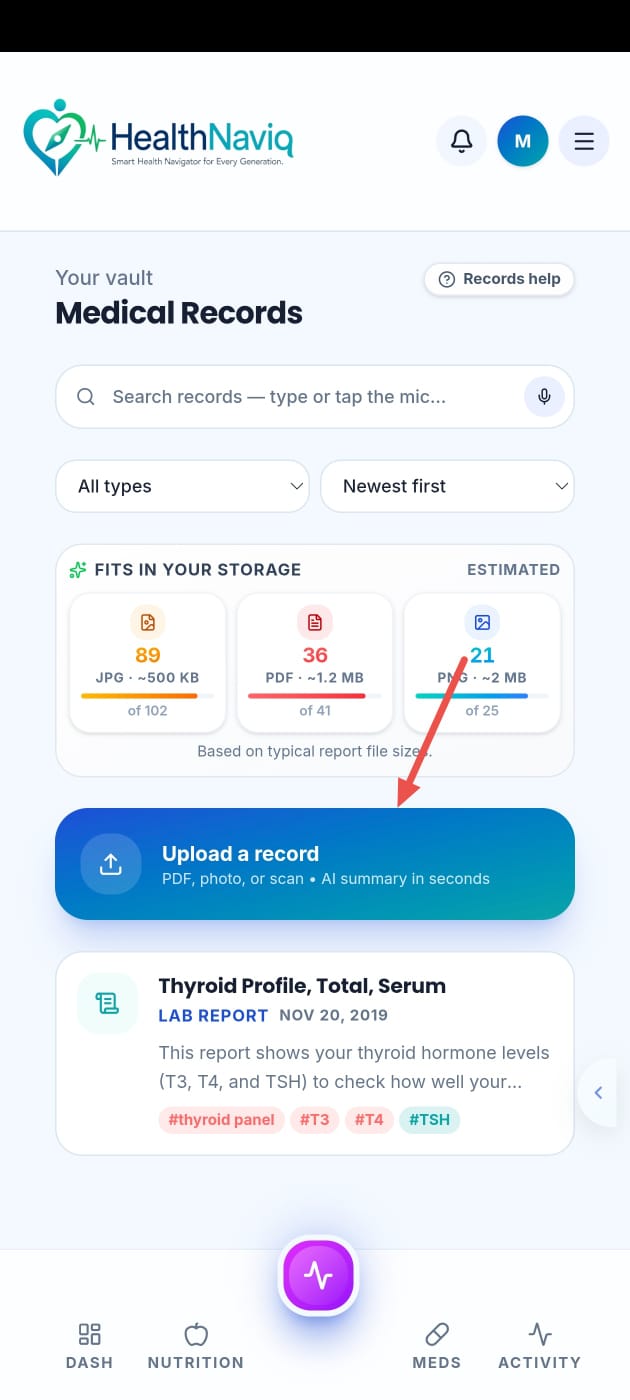
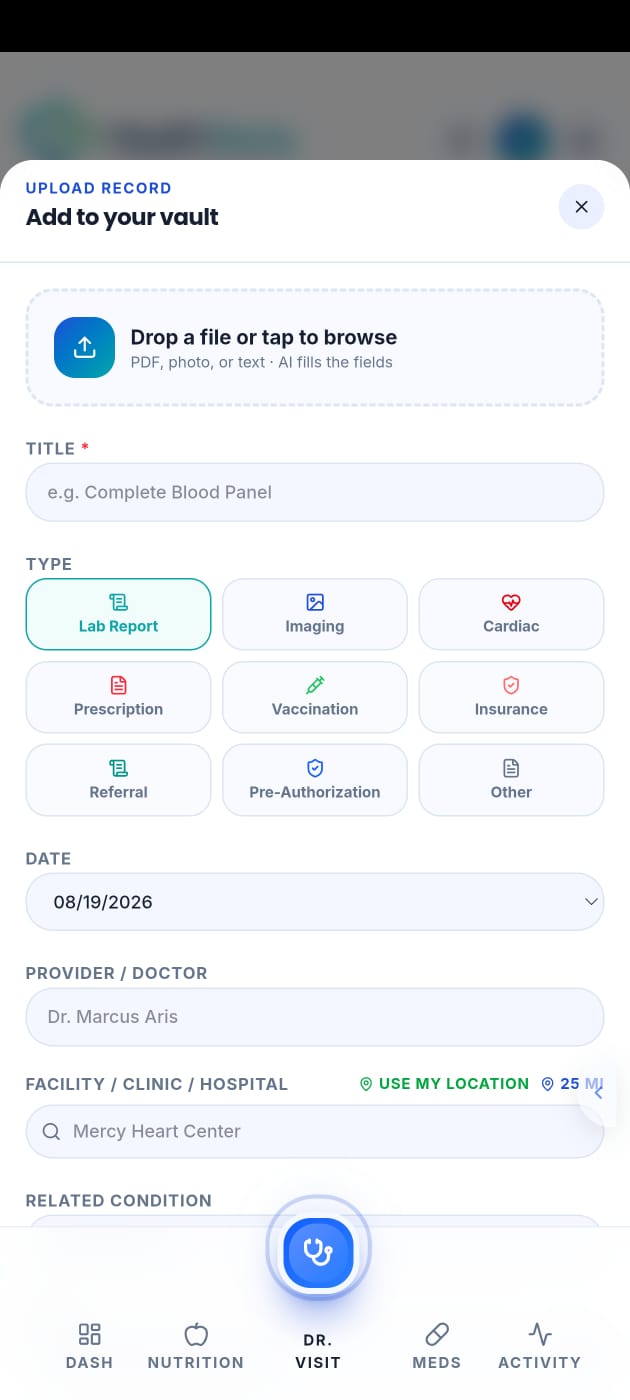
- 3Upload or capture
Add a new file from device storage or camera where available.
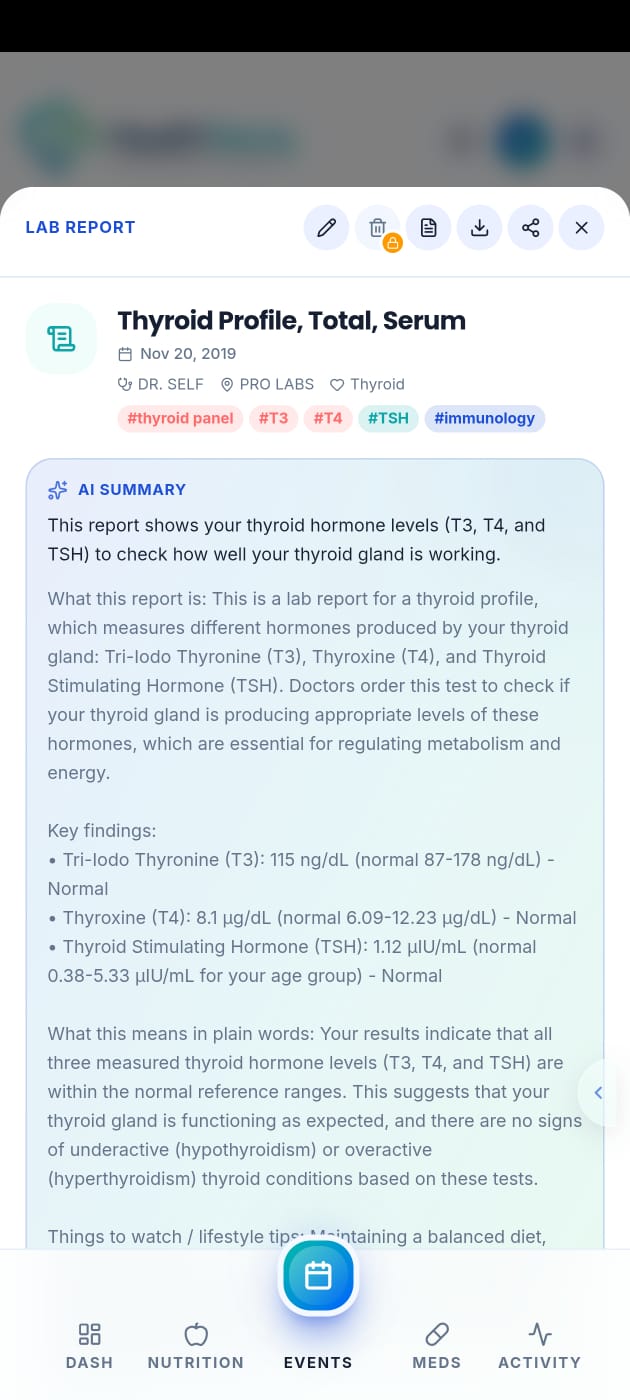
- 4Open a record
Review details and keep it ready for appointments or Care Wallet use.
Buttons & controls
| Control | What it does |
|---|---|
| Upload | Adds a new document. |
| Camera capture | Photographs a paper record when camera permission is allowed. |
| Search / filter | Finds documents by name or type when available. |
Tips
Notes
Troubleshooting
Upload fails
Check file size/network, retry, and confirm you are signed in. Try a PDF export if a photo is blurry or too large.
Related
See related articles linked from this topic for the next steps.