
Overview
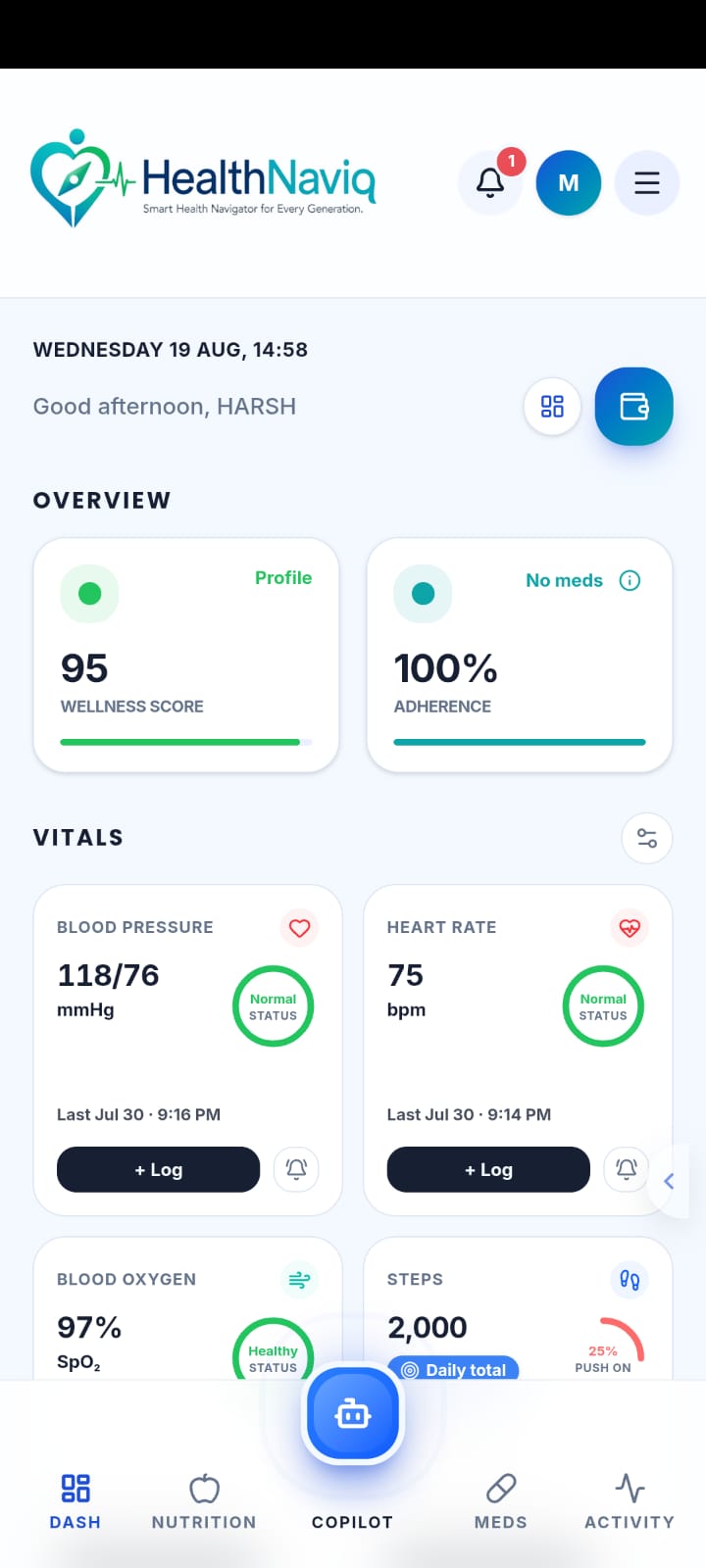
The Dashboard summarizes what matters today: upcoming appointments, medication context, nutrition diary snapshots, activity momentum, and check-in prompts.
Cards are designed to be glanceable. Tap any card to open the full module and take action.
Why use it
A single home screen reduces app hopping when you only have a minute between daily tasks.
Where to find it
How to
- 1Open Dashboard
Sign in and land on Dashboard, or choose Home/Dashboard from navigation.
- 2Scan today's cards
Review check-ins, appointments, meds, nutrition, and activity summaries.
- 3Tap into a module
Open the related screen to log data, edit an event, or start a workout.
- 4Return anytime
Use Home/Dashboard as your reset point when you finish a task.
Buttons & controls
| Control | What it does |
|---|---|
| Customize Dashboard | Opens dashboard layout settings. |
| Check-in actions | Guided prompts for incomplete setup or daily tasks. |
| Metric cards | Open detailed charts for a vital. |
Tips
Notes
Troubleshooting
Dashboard looks empty
Complete onboarding and add at least one medication, meal, or vital so cards have something to show.
I was redirected to onboarding
Your profile may still be marked not onboarded — finish those steps, then Dashboard unlocks normally.
Related
See related articles linked from this topic for the next steps.