
Overview
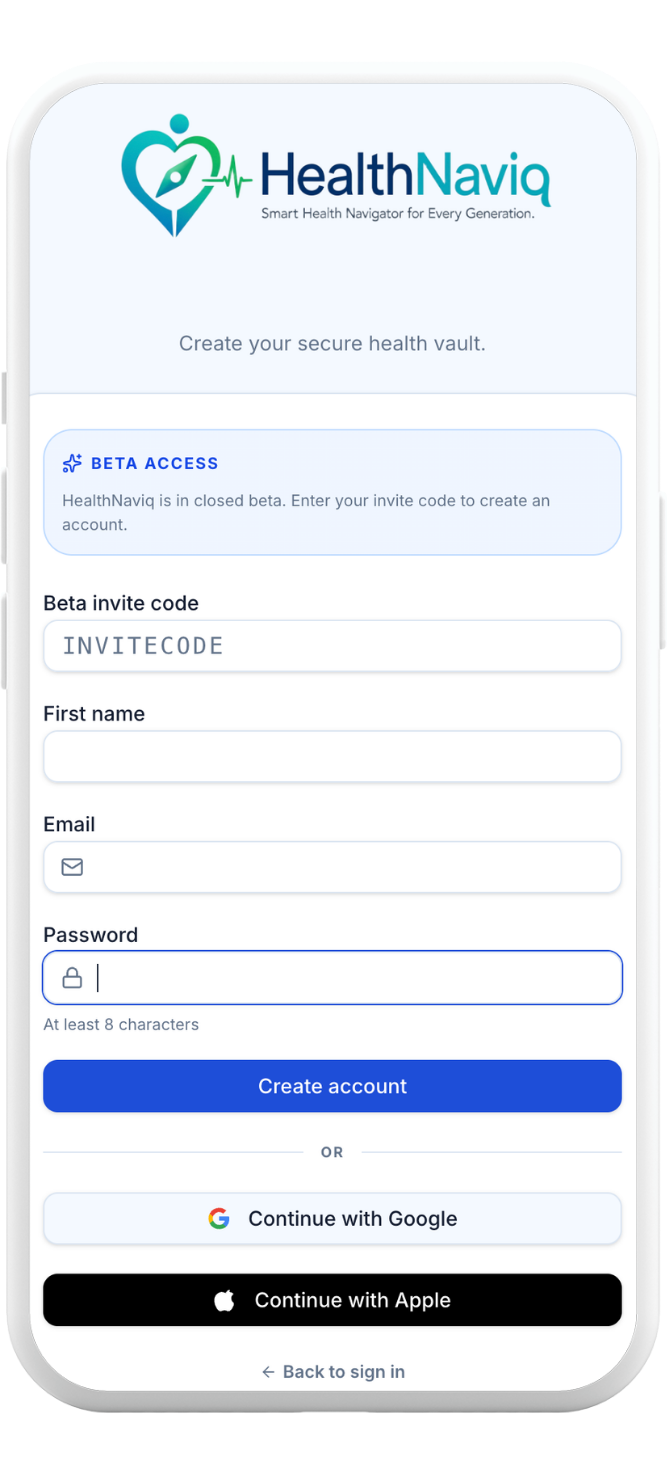
Creating a HealthNaviq account takes a few minutes. Depending on your organization or beta program, new signups may require a beta invite code before the account is created.
You can register with email and password, or continue with Google or Apple. After signup you will usually finish email verification (when required) and then onboarding.
Why use it
An account keeps your health data synced across web and mobile, unlocks reminders, and lets you invite family later.
Where to find it
How to
- 1Open Sign up
Go to the HealthNaviq sign-in page and choose Sign up.
- 2Enter invite code if prompted
If beta signup is enabled, enter a valid beta invite code before continuing with email, Google, or Apple.
- 3Choose a sign-up method
Use email/password, Google, or Apple. For email, create a strong password and confirm it.
- 4Verify if asked
If email verification is required, open the message and confirm. Then return to HealthNaviq and sign in.
- 5Continue to onboarding
After your first successful sign-in you are guided through onboarding and permissions.
Buttons & controls
| Control | What it does |
|---|---|
| Sign up | Starts a new account flow. |
| Continue with Google | Creates or links an account using your Google identity. |
| Continue with Apple | Creates or links an account using Sign in with Apple. |
| Forgot password | Sends a reset link for email/password accounts. |
Tips
Notes
Troubleshooting
My beta code is rejected
Confirm there are no extra spaces, that the code has not expired, and that it still has remaining uses. Ask the person who invited you for a fresh code if needed.
I never got a verification email
Check spam/junk, wait a minute, then use Resend if available. You can also try signing in again after a short wait.
Google/Apple signup failed
Confirm you completed the provider consent screen and that pop-ups or browser redirects are allowed.
Related
See related articles linked from this topic for the next steps.