
Overview
Adding a medication captures the name, dose, and schedule you want HealthNaviq to track.
Enter details exactly as labeled on your bottle or pharmacy instructions, and ask your pharmacist/clinician if anything is unclear.
Why use it
Accurate entries make reminders and adherence history meaningful.
Where to find it
How to
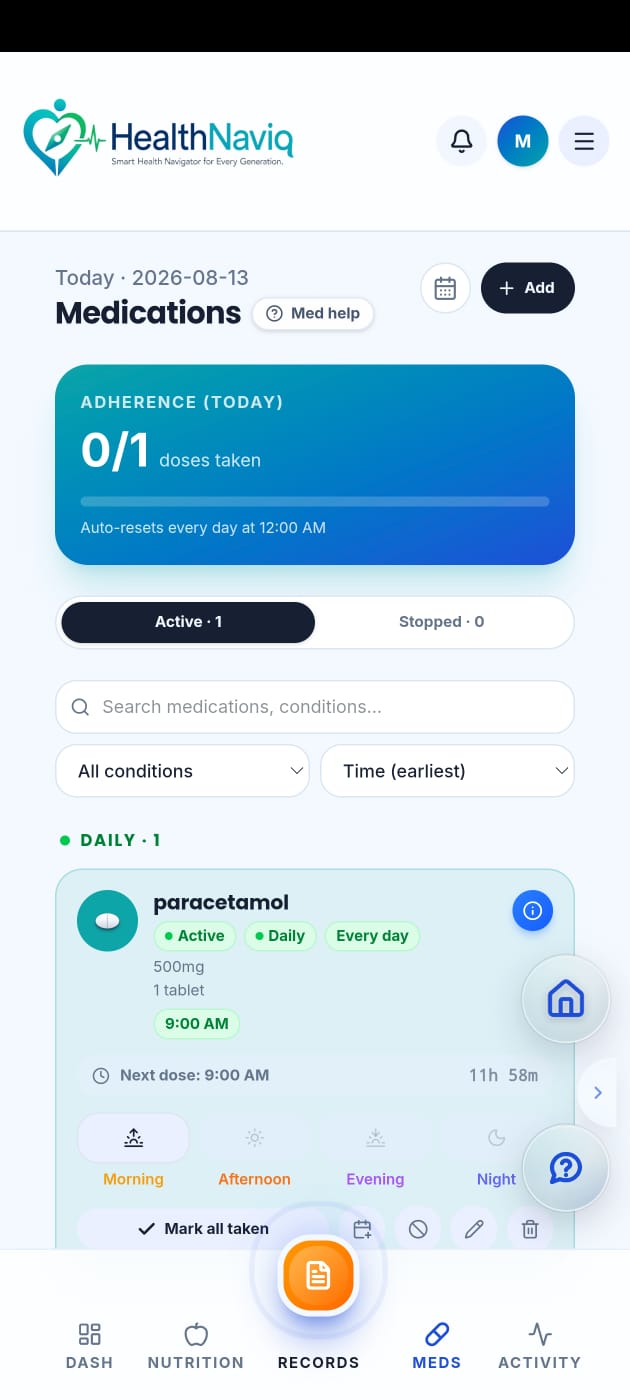
- 1Open Medications
Go to Medications.
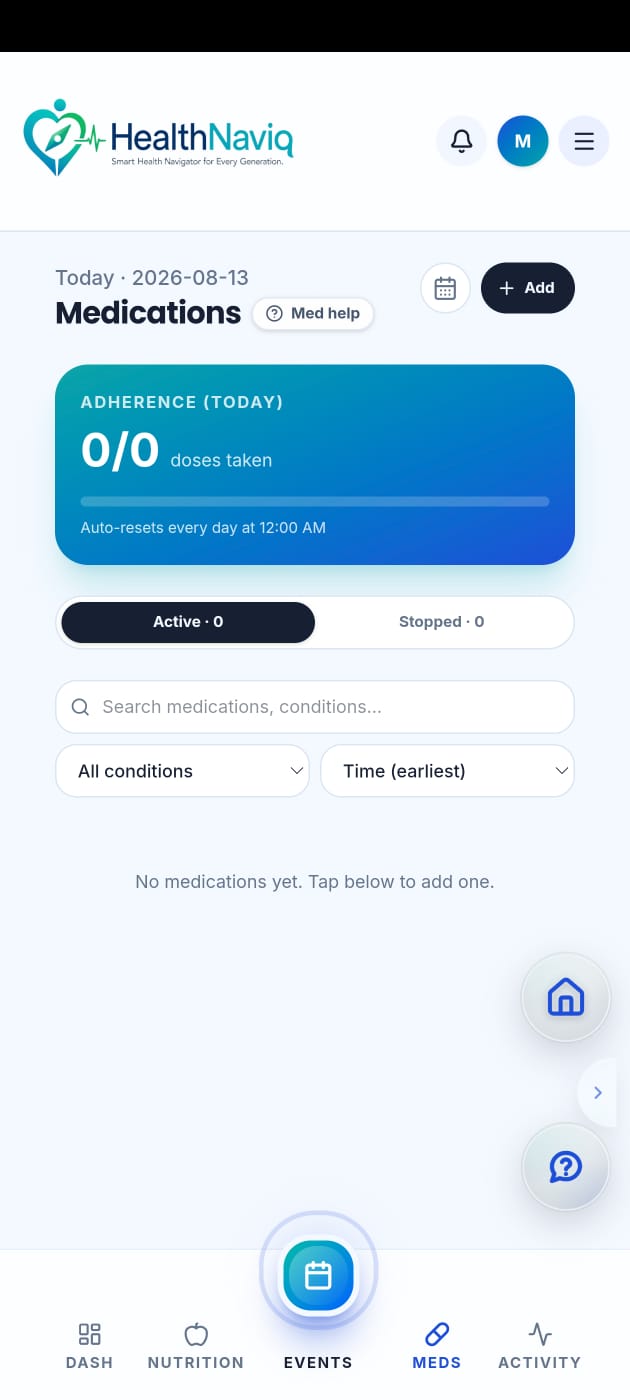
- 2Tap Add medication
Start a new entry form.
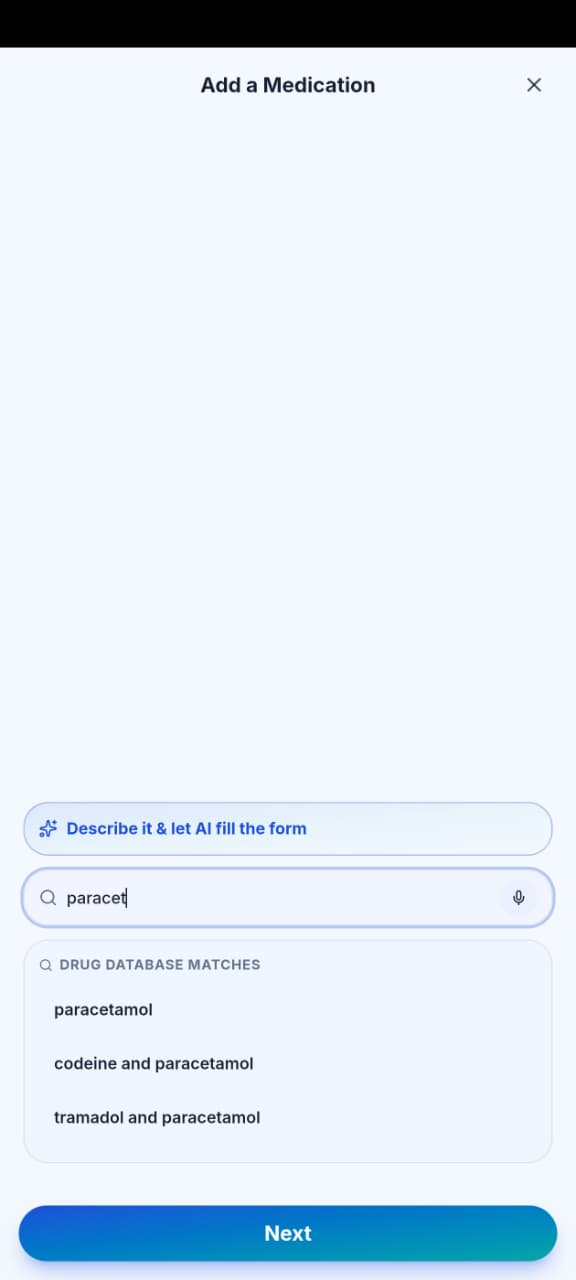
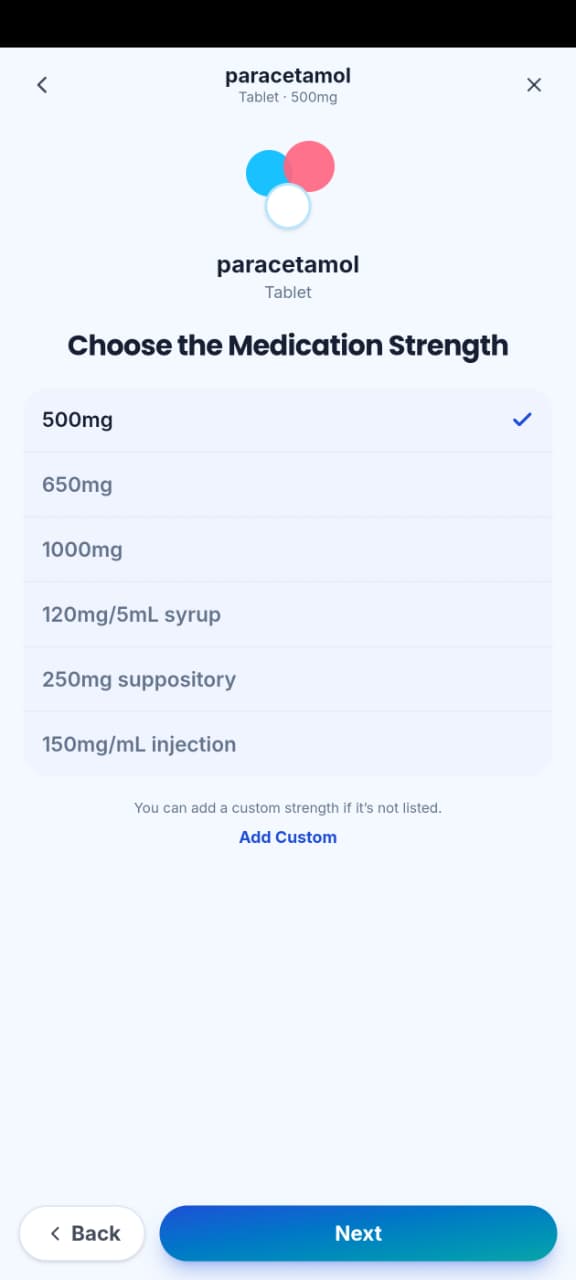
- 3Enter name and dose
Type the medicine name, strength, and how you take it.
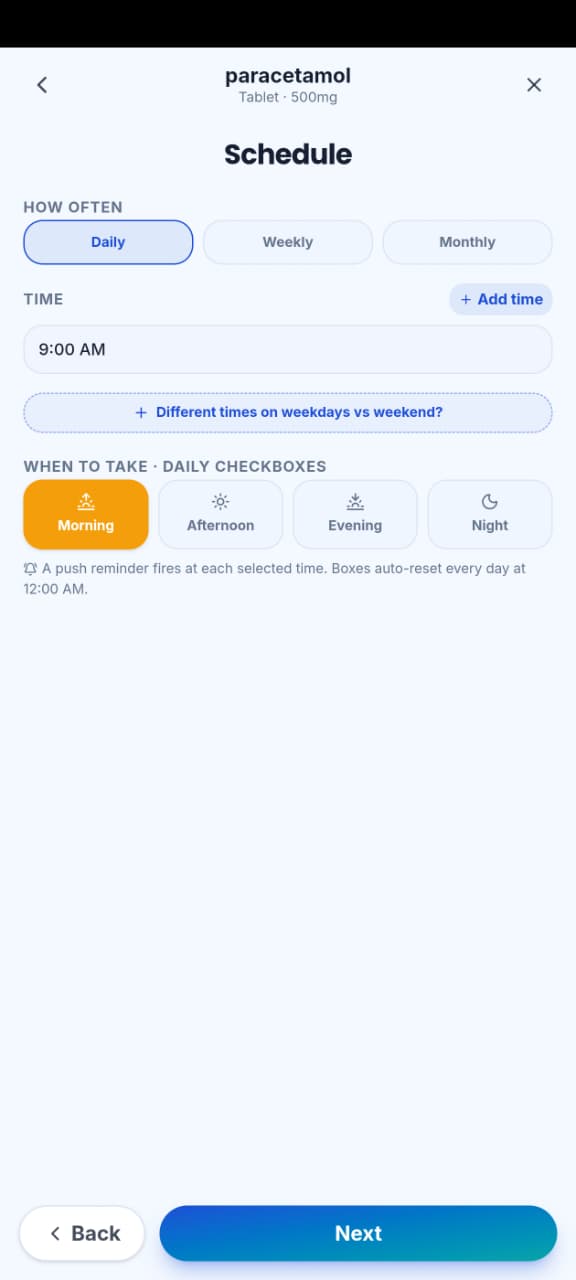
- 4Set schedule
Choose times/frequency, then save the medication.
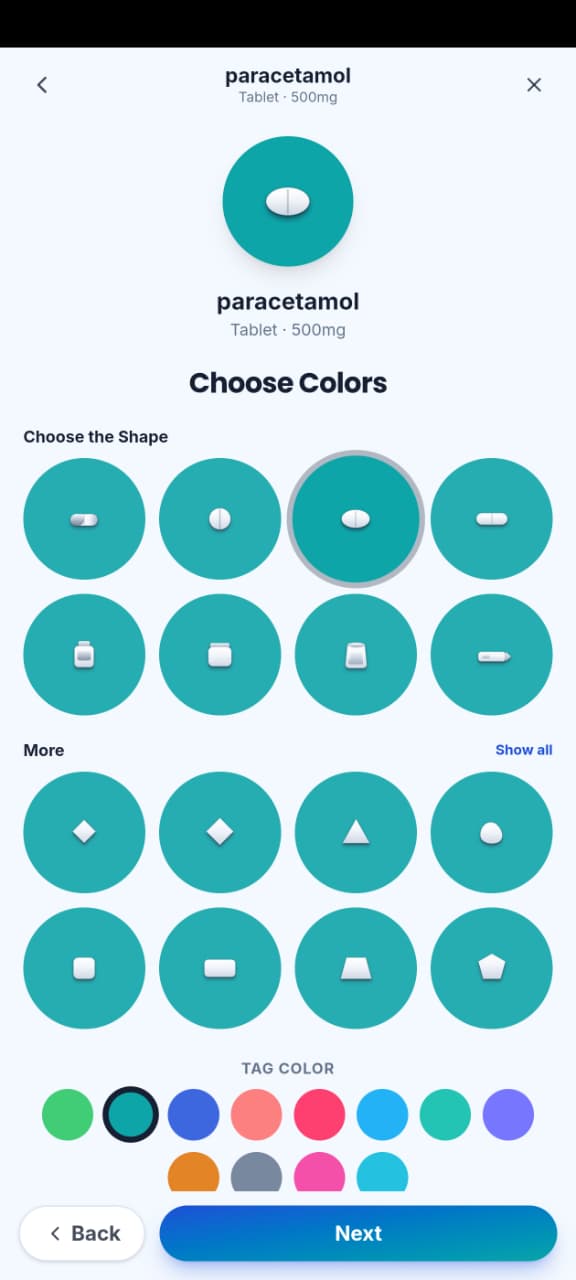
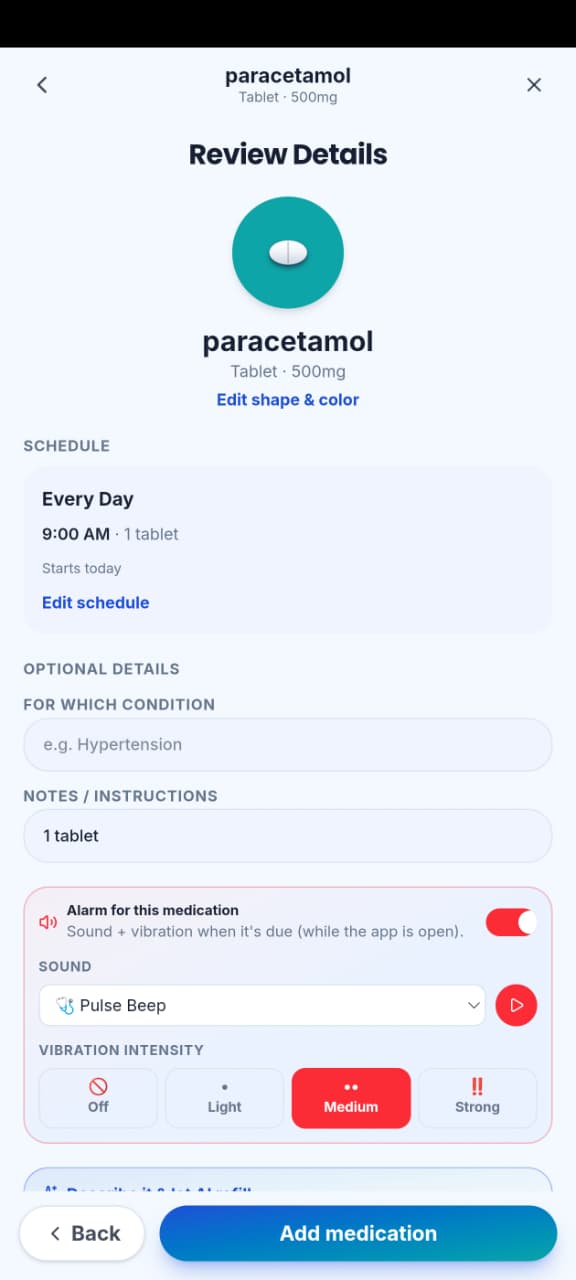
- 5Choose the Shape & Color and Add the Medication
Select the medication shape and color, then add the medication to your list. Review the details and save it to complete the setup.
Buttons & controls
| Control | What it does |
|---|---|
| Add medication | Opens the create form. |
| Save | Stores the new medicine. |
| Cancel | Discards an unfinished entry. |
Tips
Notes
Troubleshooting
Cannot save
Fill required fields, check connectivity, and try again. If it persists, contact Support.
Related
See related articles linked from this topic for the next steps.