
Overview
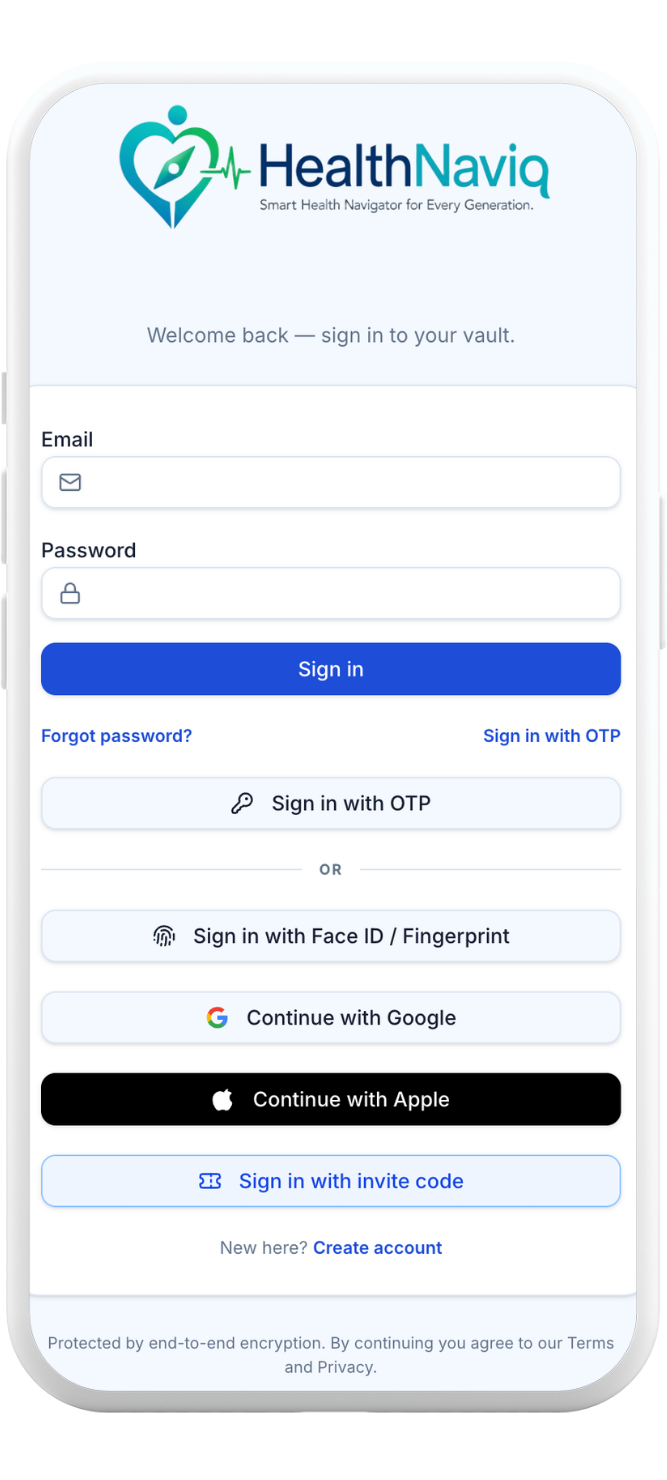
HealthNaviq supports several ways to sign in so you can choose what fits your device and comfort level.
On supported devices you can also use biometrics/passkeys after you enroll them in Settings → Security.
Why use it
Flexible sign-in reduces friction on phone and desktop while keeping your account protected.
Where to find it
How to
- 1Open Sign in
Visit the HealthNaviq auth page.
- 2Pick a method
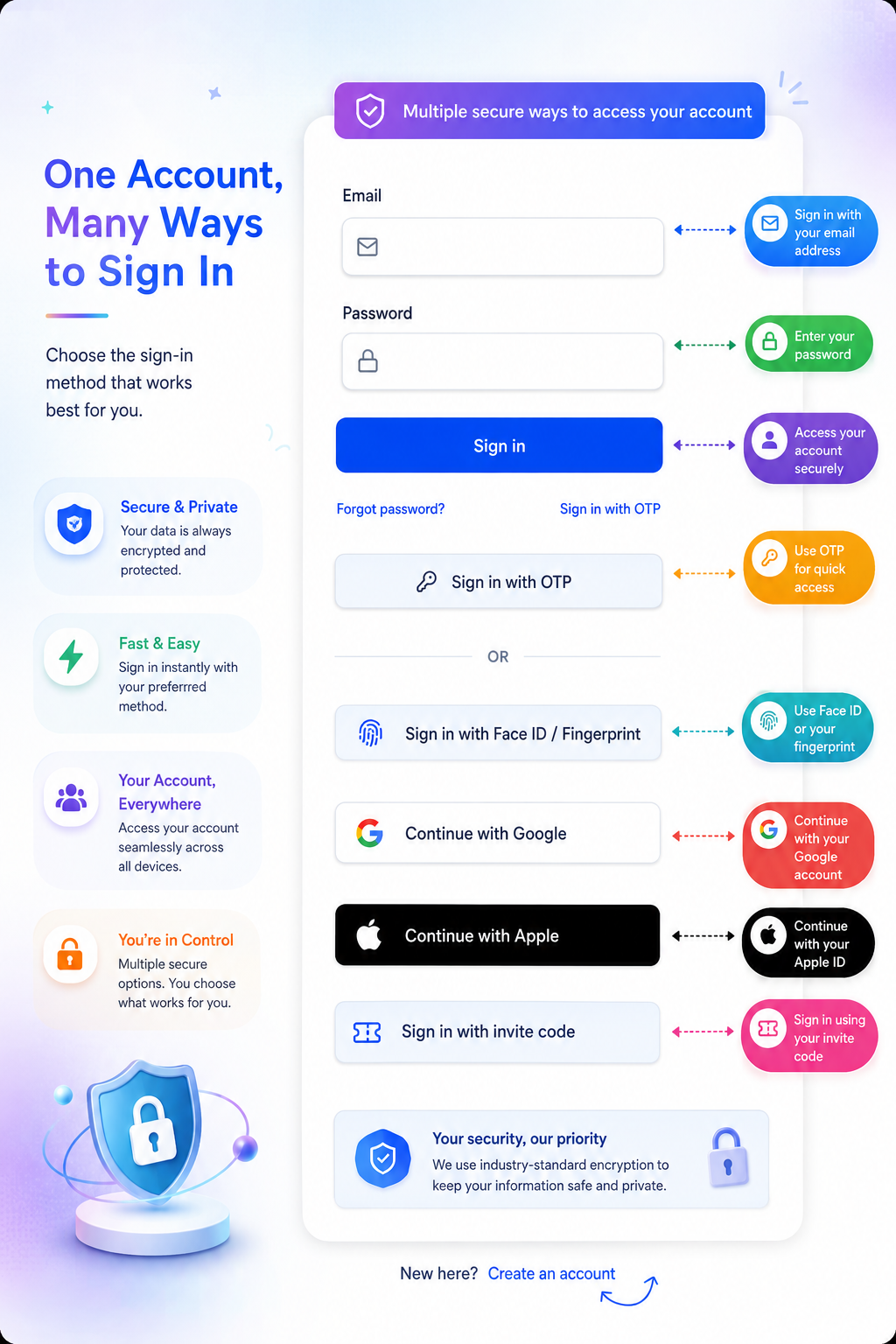
Use email/password, Email OTP, Continue with Google, Continue with Apple, or a saved passkey/biometric prompt when offered.
- 3Complete verification
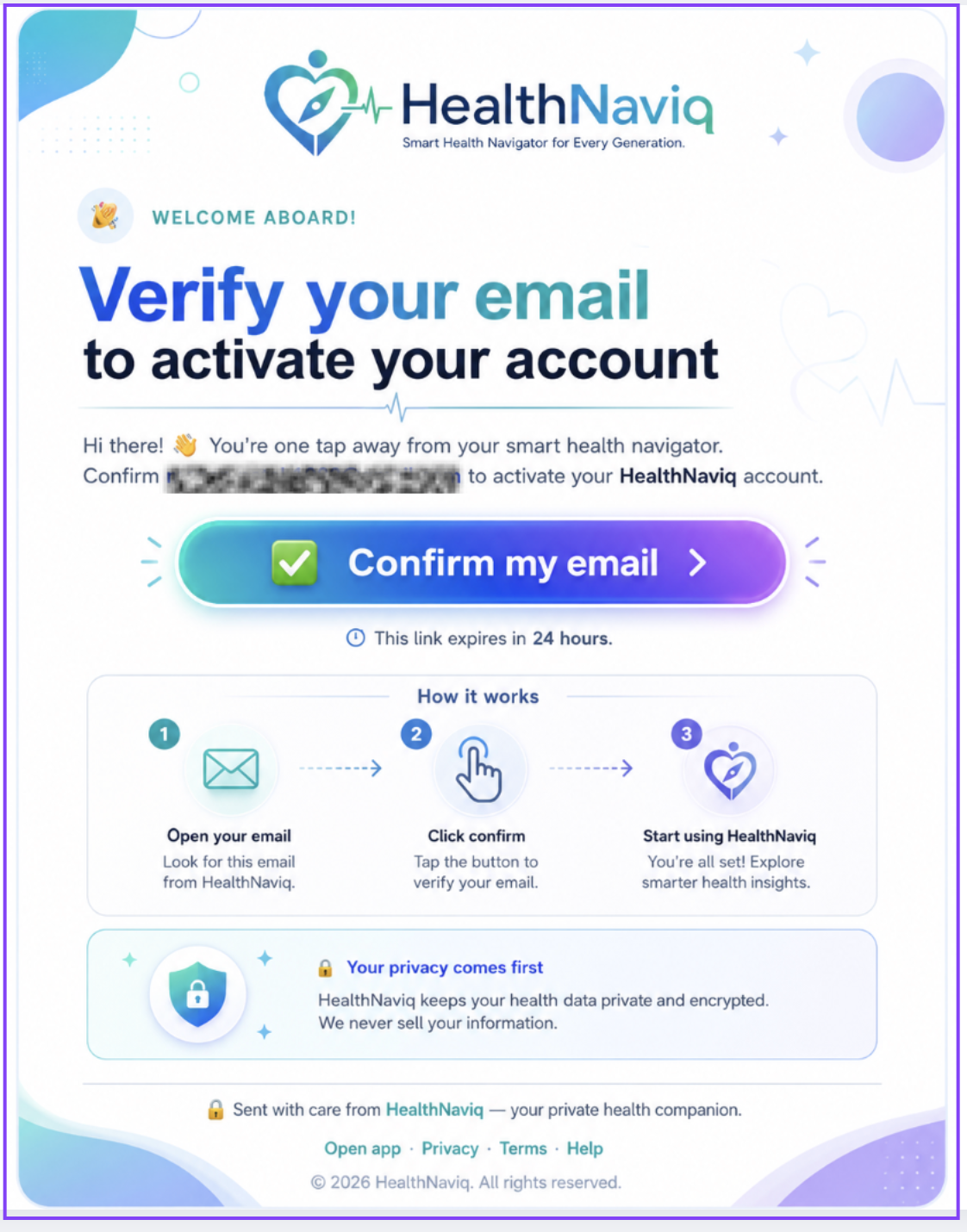
After creating your HealthNaviq account, you’ll receive a verification email at the email address you used to sign up. Open the email from HealthNaviq and tap “Confirm my email” to verify your address and activate your account. Once verified, you can return to HealthNaviq and continue setting up your profile. Important: The verification link expires after 24 hours. If it expires, request a new verification email from the app.
- 4Land in the app
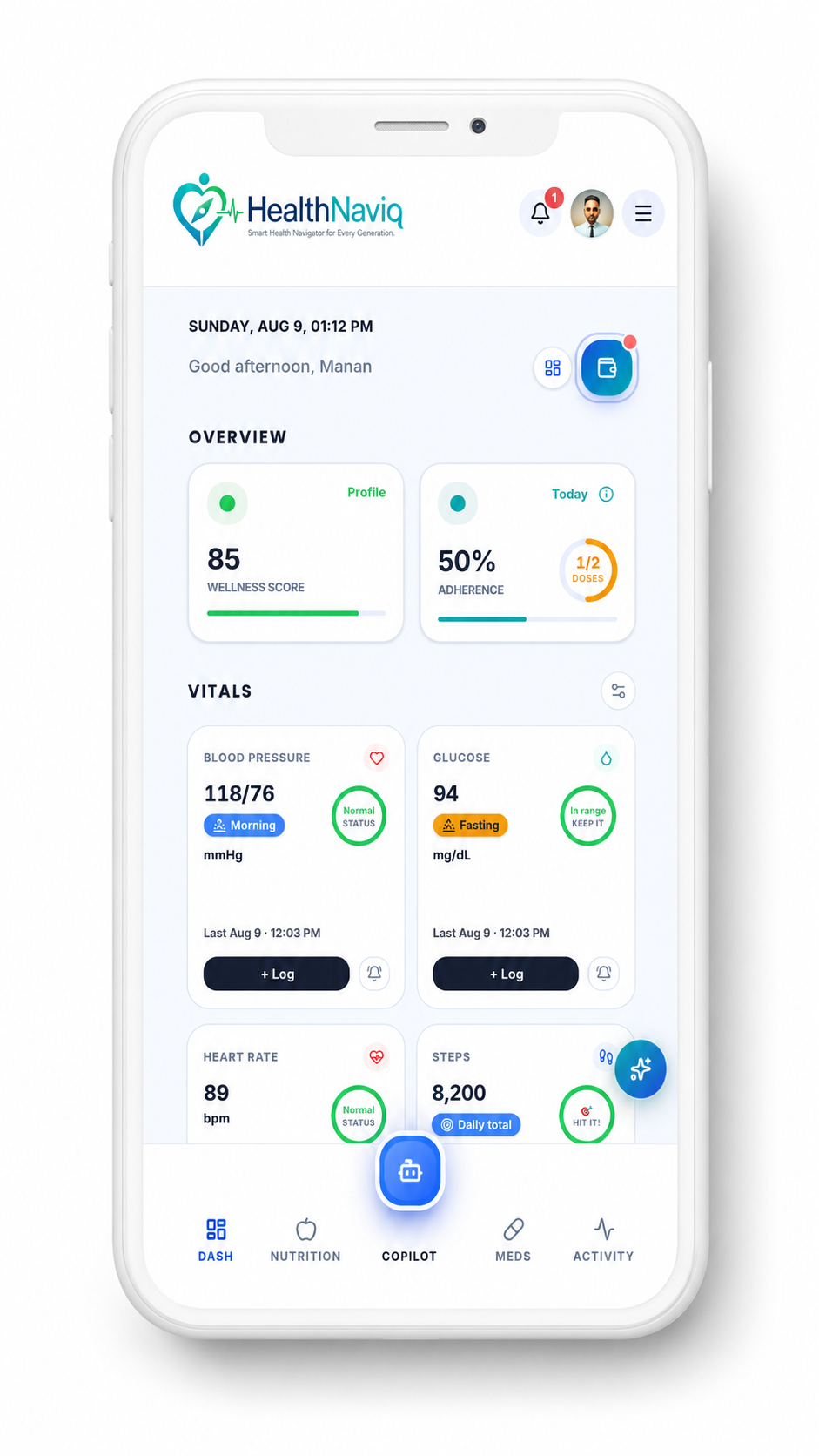
Successful sign-in takes you to Dashboard (or finishes a pending invite/onboarding step).
Buttons & controls
| Control | What it does |
|---|---|
| Email OTP | Sends a one-time code to your email instead of using a password. |
| Use Face ID / biometrics | Unlocks with a previously enrolled passkey or device biometric. |
| Forgot password | Resets password for email/password accounts. |
Tips
Notes
Troubleshooting
Biometrics prompt never appears
Confirm you enrolled a passkey under Settings → Security, and that your device supports WebAuthn/biometrics for this browser or app.
OTP code expired
Request a new code and enter it promptly. Codes are short-lived by design.
Related
See related articles linked from this topic for the next steps.